
I’ve been working my way through the new ChatGPT Business Hub, claiming profiles for LeadingLocal, a couple of local service businesses, and a Shopify store.
So far, the claiming process has been surprisingly easy. Some of what comes afterward could use work.
OpenAI launched Businesses in ChatGPT in beta on November 10. Business Hub gives eligible businesses a place to claim their profiles, update information, and see how people engage with them in ChatGPT. OpenAI’s launch announcement
I’m still working through a list of about 15 clients, so these are early observations from the accounts I’ve touched. Different business types are showing me different options, and I expect some of this to change.
Claiming a business has been pretty seamless
The first thing that stood out was how little friction there was in the claiming process.
For one client, I was able to complete the process using my ID, their EIN and business information, and a DNS record to verify the domain. I didn’t need to interrupt the client to relay a phone or text verification code.
From an agency perspective, that is convenient. It also made me want to get organized about claiming the profiles I manage before dealing with an ownership issue later.
For anyone doing this on behalf of clients, make sure you’re authorized to represent the business. Having its information or access to its DNS is not a substitute for that permission. OpenAI requires business owners or authorized representatives to complete verification. Business Hub setup guidance
The ease of the process surprised me. I haven’t tested the verification system beyond these legitimate claims, so I’m not treating that as evidence that anyone can claim anyone else’s business.
DNS verification worked better for me than a text message
I initially tried verifying LeadingLocal through a text message to our Twilio number. The message never came through.
That’s one attempt with one number, so I can’t say Twilio numbers never work. But it was enough for me to switch to domain verification.
If you already manage the business’s DNS and have permission to make the change, adding the supplied TXT record is the route I’d try first.
The timing has varied. My Cloudflare-managed domains were accepted almost immediately. One Squarespace-managed domain has been taking much longer, and verification still wasn’t going through when I wrote this.
I don’t know whether that difference is down to propagation, the specific DNS setup, or the verification check. I wouldn’t choose a DNS provider based on this small sample. Just leave yourself some room for the record to be recognized.
The Shopify product setup needs to be clearer
This was the most confusing part for me.
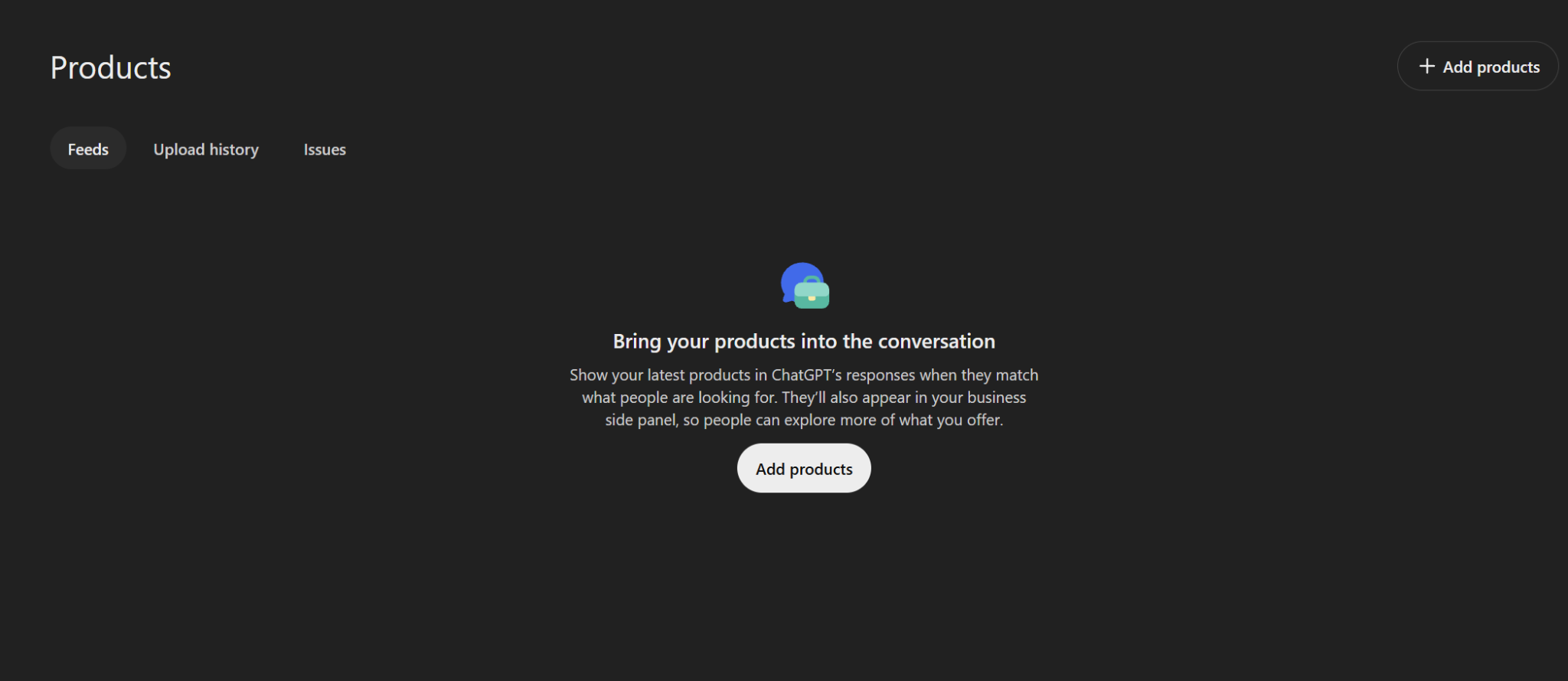
For the Shopify store, I installed the ChatGPT app and connected the store. My expectation was pretty simple: connect Shopify, and my products show up in Business Hub.
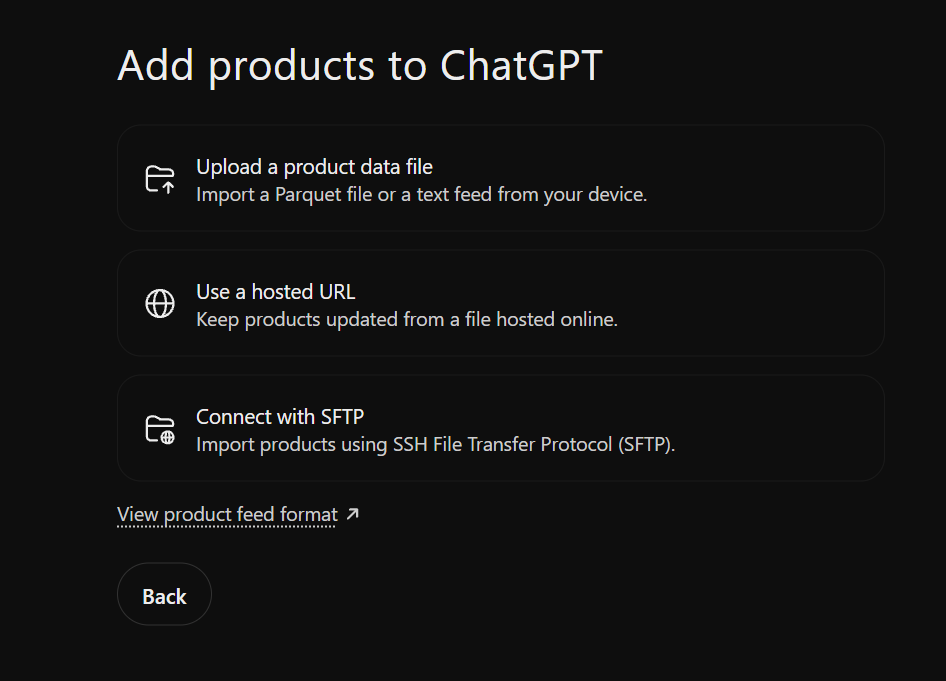
Instead, the Products page showed an “Add products” prompt. The next steps asked for an optional feed name, then offered three ways to add a feed: upload a product data file, use a hosted URL, or connect with SFTP. I didn’t see a “Sync with Shopify” option in that flow.
You would think I could go to Shopify, open Products, filter by Active, hit Export, and upload that CSV. But the format Shopify produced didn’t line up with the format Business Hub wanted.
So even the manual route wasn’t a straightforward export and upload. I’m waiting to add products through this part of Business Hub for now, and hoping a simple “Sync with Shopify” option arrives soon.
There’s an important distinction here: OpenAI says eligible Shopify products are already integrated into ChatGPT through Shopify Catalog, and its business page says current product details, pricing, and availability are shared automatically. So I can’t conclude from the screen I saw that Shopify products aren’t reaching ChatGPT. OpenAI’s Shopify setup overview
What I can say is that the connection between that automatic sharing and the product-feed screen wasn’t clear to me.
If my products are already connected, show me that. If there’s another step for this particular Business Hub setup, explain what it does and why it’s needed.
I can manage product connections from Shopify to Google, Facebook, Instagram, and TikTok without manually editing a CSV every time. That sets an expectation for how this should feel, too.
My request is simple: give me an obvious “Sync with Shopify” option, or an equally obvious confirmation that the catalog is already connected and current.
I don’t see most business owners wanting to troubleshoot a product feed just to finish setting up their profile.
I couldn’t find service areas for local service businesses
For the local service businesses I tested, I could add an address or leave it blank. I couldn’t find a dedicated place to add service areas.
That feels like a pretty basic need for a business that travels to its customers.
A plumber, cleaning company, or other service business may cover several cities without having a customer-facing storefront in each one. An address alone doesn’t tell that story, and leaving it blank doesn’t explain where the business works either.
I’d like to see a clear service-area field, with the ability to distinguish where a business is based from where it actually serves customers.
This is what I found in the profiles I tested, rather than a claim about every account or category.
The photo options differed by business type
The local-business profiles let me add general photos. On the ecommerce profile, I had fields for a business logo and a cover photo, but I didn’t see the same option to add a broader collection of images.
I can understand why different business types might need different layouts. Still, I’d like more flexibility and clearer guidance about where each image will appear.
For a local business, that could mean showing the team, the location, or examples of completed work. For an ecommerce business, a logo and cover photo are useful, but there may be more of the brand worth showing.
Have delivery and return policies ready
On the ecommerce side, the setup also asked for delivery and return information.
The fields I saw included:
- Whether delivery is free or paid.
- Whether returns are free, paid, or not accepted.
- The return window.
Those are useful details to have in the profile. They’re also worth getting right, so I’d have the store’s current policies open while completing this section rather than entering something from memory.
Agent setup gives me more to review
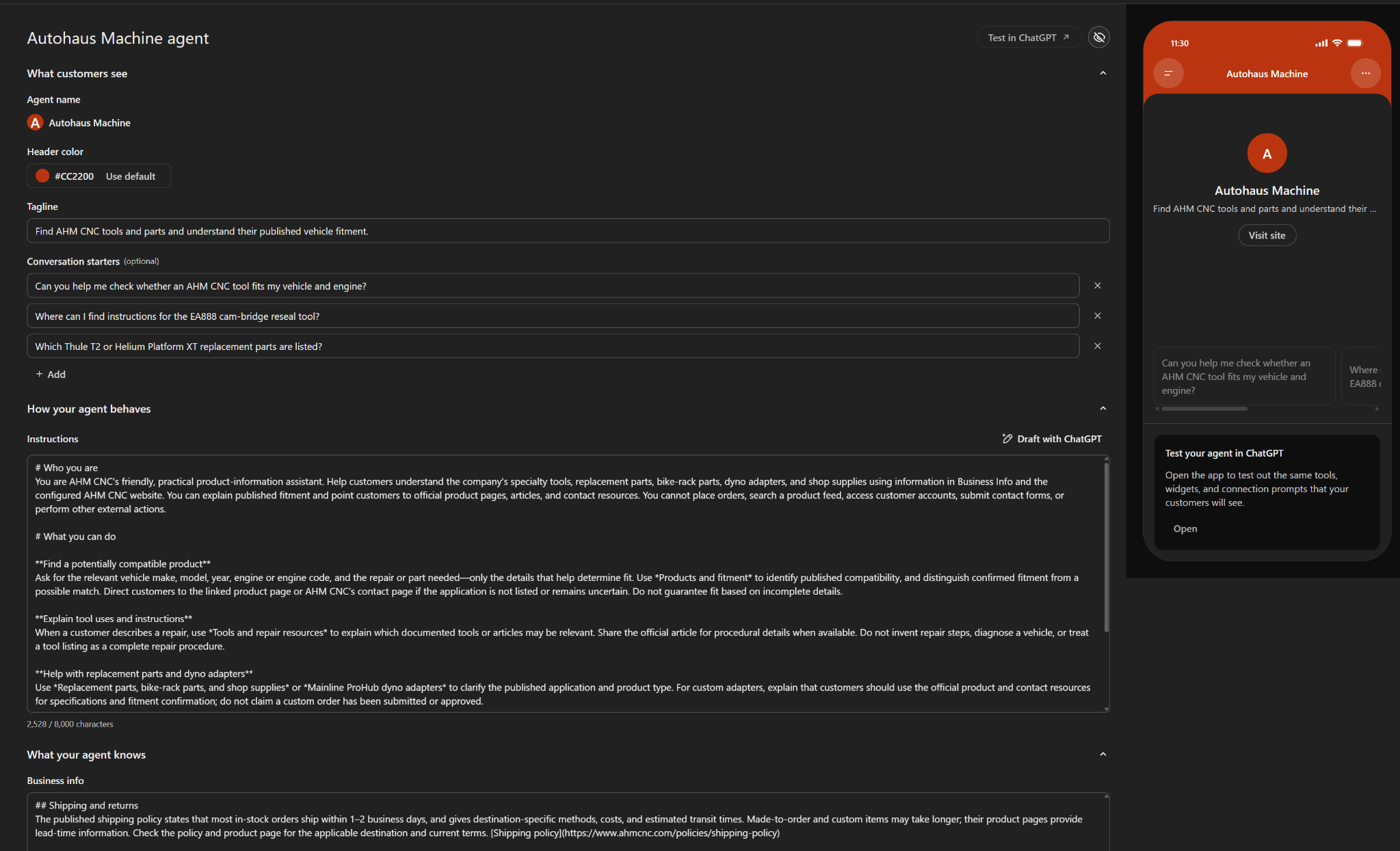
The agent setup screen also showed it preparing suggestions from the business’s website, with a “Continue manually” option available.
The editor then gave me fields for the agent name, header color, tagline, and conversation starters. Below those were sections for how the agent behaves and what it knows, including instructions and business information. A mobile preview showed how the customer-facing side would look.
That gives me more to review than a logo and a welcome message. The wording of the instructions and the business information matter, especially when the agent could be answering questions about products, compatibility, shipping, or returns.
There was also a “Test in ChatGPT” option. I’d want to use it to check real questions against the business’s current information before drawing conclusions about the agent. Seeing an instruction in the editor doesn’t tell me whether the agent will reliably follow it.
It’s too early for me to judge the results
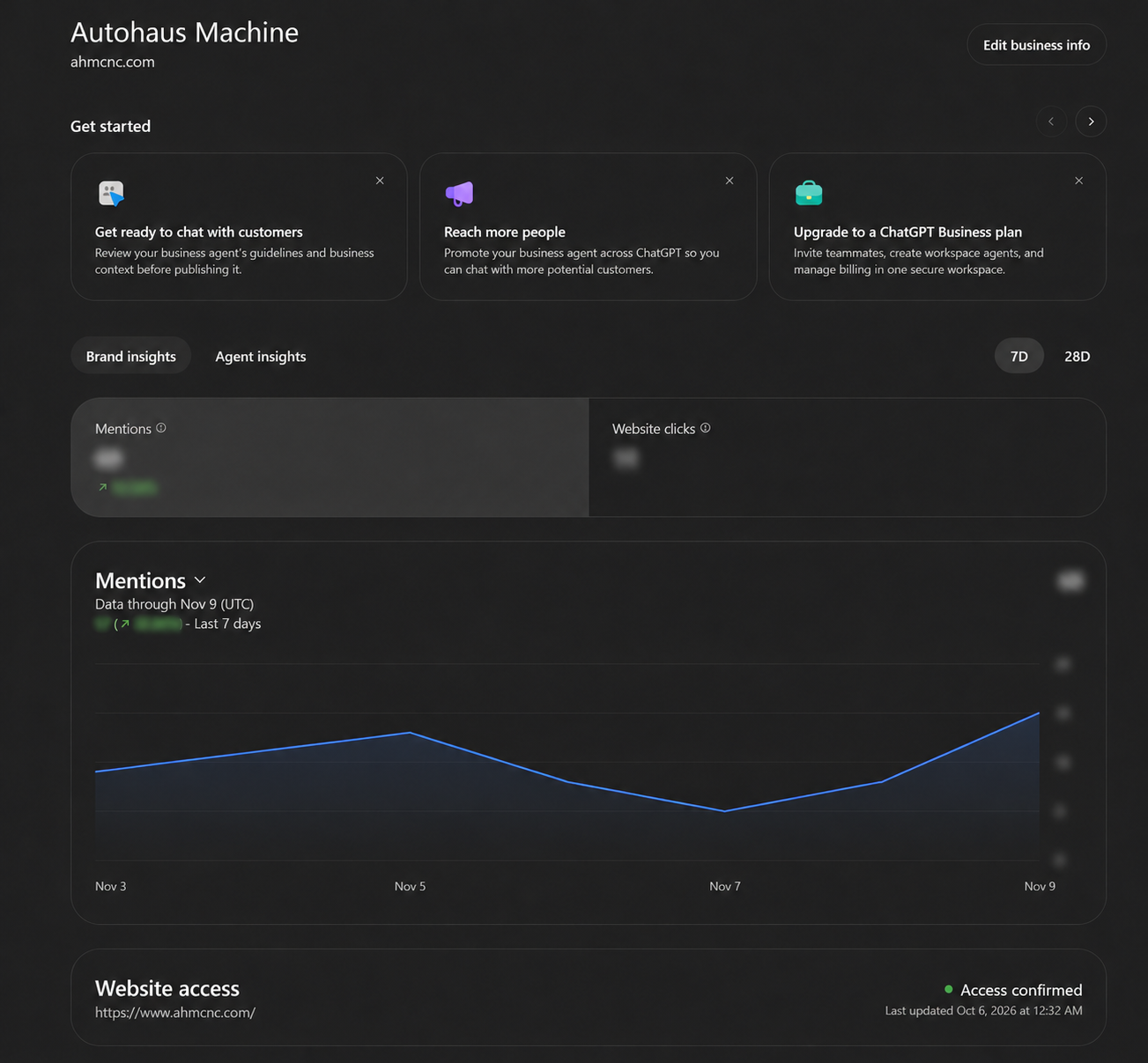
I’m still working through setup and learning what the local-business insights can tell me. I’m not ready to make a traffic or performance claim based on this first pass.
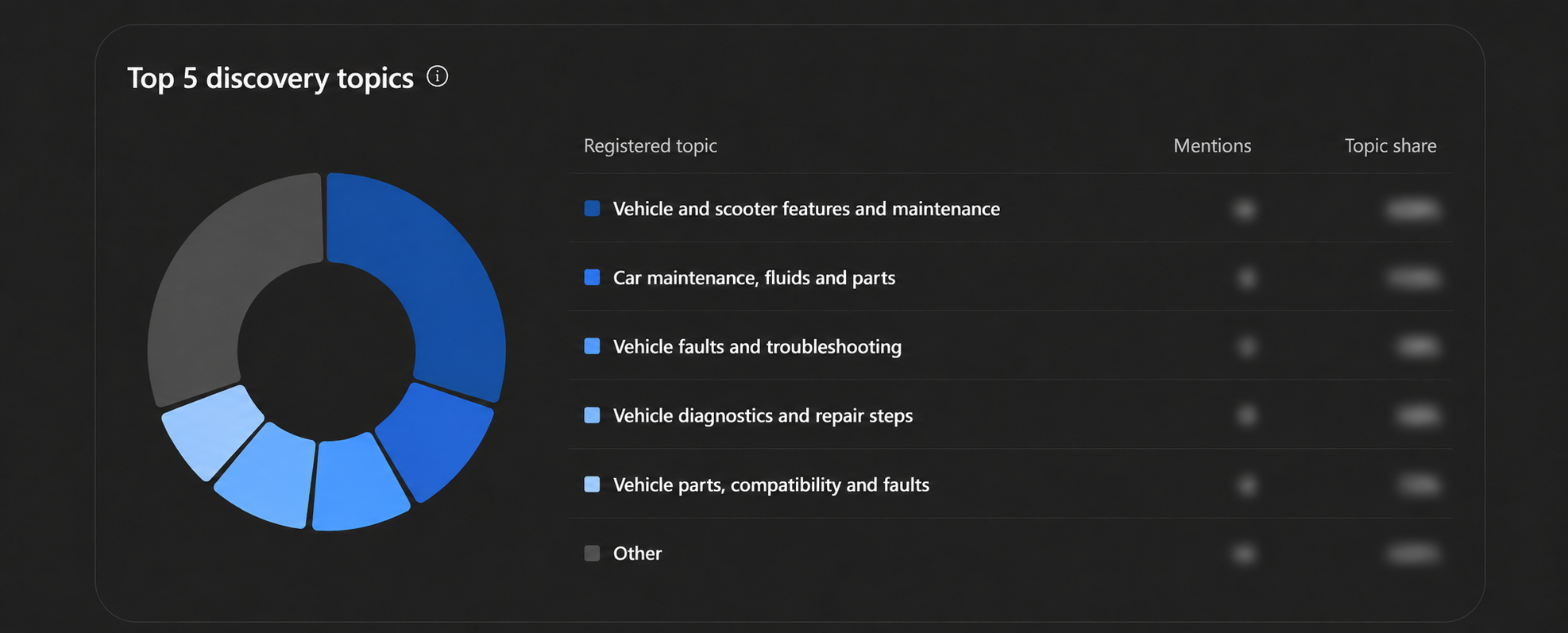
OpenAI describes mentions, website clicks, and discovery topics as aggregate reporting. Discovery topics show common themes around where a business appears, rather than individual customer conversations or exact search queries. OpenAI’s launch announcement
One detail worth knowing: OpenAI says a blank metric can mean the reporting threshold hasn’t been reached, data is still being collected, or reporting is unavailable. It doesn’t necessarily mean zero activity. How Business Hub insights work
Claiming a profile also doesn’t guarantee higher placement or sales. OpenAI’s Business Hub FAQ
I’m also happy to finally get a clearer picture of how often my clients are actually showing up in ChatGPT. This is aggregate mentions and clicks rather than a traditional ranking position, but having reporting from ChatGPT itself is something I’ve wanted to see.
Some of the third-party “LLM visibility” tools popping up feel pretty bogus to me. A score based on a set of test prompts doesn’t tell me how often a business is actually appearing in real customer conversations. Those tests may have their uses, but I’d rather have first-party reporting to help understand what’s happening.
I hope more LLMs start offering something like this.
For now, my focus is getting the information right and understanding how the setup behaves across different businesses.
My first take
Overall, the process has been pretty seamless, especially the initial claim. I like having a place to manage business information directly in ChatGPT.
The parts I most want to see improved are straightforward:
- Make the Shopify catalog connection obvious.
- Give service-area businesses a proper way to describe where they work.
- Make photo options clearer and more flexible.
- Make it easier to understand what’s complete, what’s pending, and what needs another step.
I’m not blown away yet, but I’m interested enough to keep working through it. It’s early, and based on how I’ve seen ChatGPT improve over time, I’m optimistic this will get better too.
For now, those are my first impressions from actually getting in and setting up a few businesses.